Step 2 - Create a new material type and textures for the car body
To use a texture you need a material type that supports textures. When you create a Kanzi Studio project and in the Quick Start window set the Materials to Import material types manually, the project does not include any material types or materials. However, Kanzi Studio comes with a set of material types you can use and modify to suit your needs. You can find all available material types in <KanziInstallation>/Studio/Asset Library/MaterialTypes:
- Common contains material types with general purpose shaders.
- FragmentPhong contains high-precision slower-performing material types with pixel-based shaders.
- VertexPhong contains low-precision fast-performing material types with vertex-based shaders.
In this step you use a material type from <KanziInstallation>/Studio/Asset Library/MaterialTypes/VertexPhong.
Whenever you import 3D models into Kanzi Studio, the materials used in the models are imported too. You can see all available material types, materials, textures, and brushes in a project in the Library > Materials and Textures.

In this step you first create a new material type and then create a cubemap texture for that material. In this step you use this cubemap material for the car body, but in later steps you assign the same cubemap to other car parts: rims, windows, headlights, and chrome parts.
Create the VertexPhongTexturedCube material type
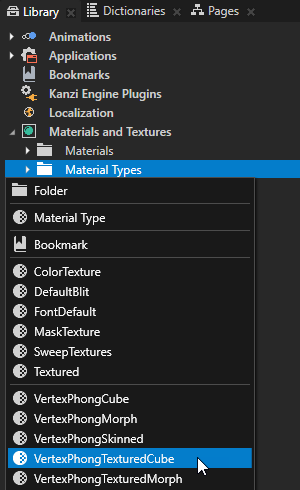
- In the Library > Materials and Textures > Material Types press Alt and right-click, and select VertexPhongTexturedCube.
Kanzi Studio adds to the Library the VertexPhongTexturedCube material type and the VertexPhongTexturedCubeMaterial material which uses the VertexPhongTexturedCube material type.
This is how you can add to your Kanzi Studio project from <KanziInstallation>/Studio/Asset Library/MaterialTypes any material type that is not already in your project.
Tip To load to your Kanzi Studio project any material type from your computer, in the Library > Materials and Textures right-click and select Load Material Type From Disk.

- In the Library > Materials and Textures > Materials select MainBody_1, and in the Properties set the Material Type property to VertexPhongTexturedCube.

Since you just created the VertexPhongTexturedCube material type, any material of that type uses the default texture. In the next section you create the cubemap texture for a material that uses the VertexPhongTexturedCube material type.

Create textures for the car body
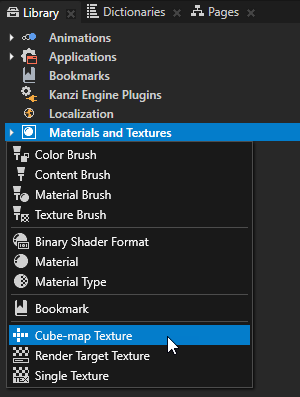
- In the Library press Alt and right-click Materials and Textures, and select Cube-map Texture.
For example, name the texture CarBodyCubemapTexture.
When you create a cubemap texture Kanzi Studio shows it in red type because the texture does not yet have textures assigned for each face of the cubemap. You do this in the next step.

- In the Properties of the CarBodyCubemapTexture set the Cube-map Images properties to their respective images. Set the NegZ Image property to image NegZ.png, PosZ Image property to PosZ.png, and so on until you have set all the images.

- In the Library > Materials and Textures > Materials select the MainBody_1 material, and in the Properties set the TextureCube property to CarBodyCubemapTexture.

Now that you assigned the cubemap texture to the car, you can see the reflection of the environment on the car body. Next you create the texture for the car body.

- In the Library > Materials and Textures > Materials select the MainBody_1 material, and in the Properties set the Texture property to the CarBody texture.


< PREVIOUS STEP
NEXT STEP >
See also
Creating textured materials
Using cubemap textures
Using single textures
Material types and materials
Textures
Factory Content assets

Open topic with navigation